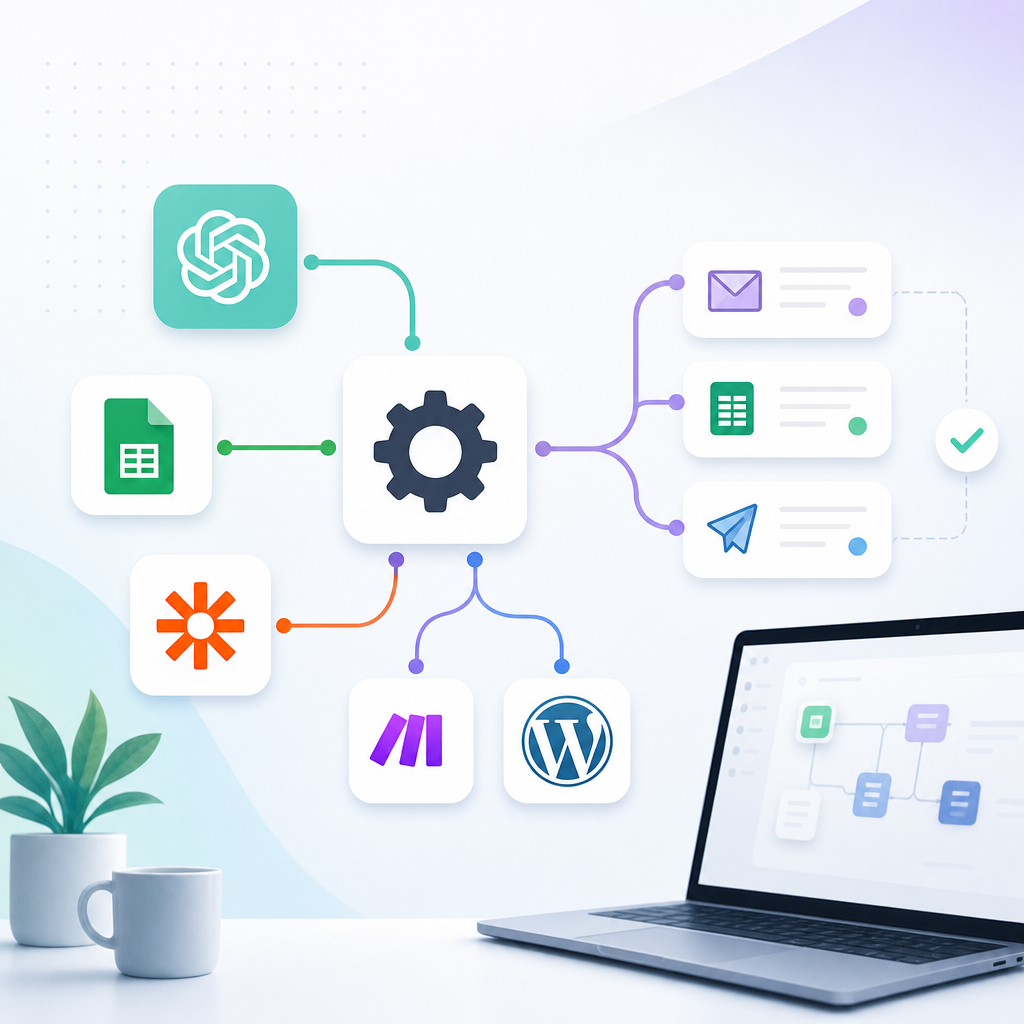
5 Best AI Automation Tools for Small Businesses and Solopreneurs
Starting and running a small business is no small undertaking. As a business owner, you may be responsible for sales, marketing, customer service, content creation, bookkeeping, project management, and daily administration—all at the same time.
The difficulty is not simply the number of tasks on your list. Many of those tasks must be repeated every day or every week. New leads must be recorded, emails must be answered, invoices must be followed up, content must be published, and customers must be kept informed.
When these activities are performed manually, they consume time that could otherwise be used to develop products, strengthen customer relationships, and grow revenue.
AI automation tools can help.
These platforms connect the applications you already use, move information between them, apply business rules, and complete predictable actions automatically. When artificial intelligence is added, workflows can also summarize, classify, extract, analyze, and draft content.
Most importantly, you do not need to become a programmer to begin. Modern no-code automation platforms use visual builders, templates, plain-language instructions, and guided setup processes.
This guide compares five of the best AI automation tools for small businesses:
- Zapier.
- Make.
- Airtable.
- monday.com.
- n8n.
Important update: Automate.io, which appeared in the original version of this list, is no longer an appropriate recommendation. This guide replaces it with currently available platforms.
AI Automation for Small Businesses: Why It Matters
A solopreneur has the same basic operational needs as a larger organization but fewer people available to perform the work.
A large company may have separate employees for:
- Marketing.
- Sales.
- Customer service.
- Finance.
- Project management.
- Data analysis.
- Administrative support.
A solopreneur may perform every one of those roles alone.
Automation helps compensate for that limitation by turning repeated procedures into systems. Instead of remembering and manually completing every step, you create a workflow that is activated when a specific event occurs.
A basic workflow could be:
When someone submits a contact form, add the person to a spreadsheet and notify me.
An AI-powered version could be:
When someone submits a contact form, summarize the inquiry, identify the requested service, assign a preliminary priority, add the lead to a CRM, draft an acknowledgment, and create a follow-up reminder.
The first workflow moves information. The second workflow interprets information before deciding what should happen next.
What Can Small Businesses Automate?
Common small business automation workflows include:
- Capturing and organizing leads.
- Sending appointment confirmations.
- Preparing customer follow-up emails.
- Recording form submissions.
- Creating tasks from emails.
- Organizing receipts and invoices.
- Sending payment reminders.
- Updating customer records.
- Repurposing blog articles.
- Preparing social media drafts.
- Generating weekly reports.
- Monitoring inventory.
- Categorizing support requests.
- Summarizing customer feedback.
- Creating project folders and onboarding tasks.
The best tasks to automate are frequent, predictable, time-consuming, and easy to review.
The Five Tools at a Glance
| Tool | Best for | Learning curve | Main strength |
|---|---|---|---|
| Zapier | Beginners connecting many different applications | Gentle | Broad integration library and fast setup |
| Make | Visual, multi-step, branching workflows | Moderate | Detailed control over data and workflow logic |
| Airtable | Businesses needing a central operations database | Moderate | Combines structured data, interfaces, AI, and automation |
| monday.com | Project, client, and task management | Gentle to moderate | Keeps work management and automation together |
| n8n | Flexible AI workflows and greater technical control | Moderate to steep | Customization, advanced logic, and self-hosting options |
1. Zapier: Best for Fast, Beginner-Friendly Automation
Zapier is one of the best-known no-code automation platforms. It connects applications and allows users to create automated workflows called Zaps.
Each Zap starts with a trigger and continues through one or more actions.
For example:
Trigger: A customer completes a website form.
Actions:
- Create a contact in a CRM.
- Add the person to an email list.
- Send an acknowledgment.
- Create a follow-up task.
- Notify the business owner.
Zapier’s guided builder makes this trigger-and-action structure relatively easy to understand. You select an application, choose an event, connect your account, match the necessary fields, and test the step.
Zapier currently advertises connections with more than 9,000 applications and offers workflows, forms, tables, AI processing, chatbots, agents, and additional automation tools. Zapier’s platform overview provides its current integration and AI details.
What Zapier Does Well
Large Integration Library
Zapier’s greatest strength is its extensive collection of application integrations.
It can connect popular tools used for:
- Email.
- Ecommerce.
- Customer relationship management.
- Social media.
- Accounting.
- Project management.
- Scheduling.
- Forms.
- Cloud storage.
- Marketing.
- Customer support.
If your business uses several specialized applications, Zapier is often one of the first places to check for existing connections.
Beginner-Friendly Builder
Zapier leads users through the setup process step by step. This makes it a good entry point for business owners who are building their first automation.
Extensive Template Library
Prebuilt templates provide a starting structure for common processes. You still need to connect your accounts, review field mappings, and test the workflow, but templates reduce the amount of setup required.
AI-Enabled Workflows
AI steps can help summarize emails, classify leads, create response drafts, extract details, and process unstructured text. Zapier also offers broader AI and agent capabilities for users who want to progress beyond basic automations.
Example Zapier Workflow
A consultant wants to automate new client inquiries.
The Zap could:
- Watch for a new form submission.
- Send the message to an AI-processing step.
- Extract the prospect’s name, business, requested service, and preferred timeline.
- Create a record in a CRM.
- Draft a personalized acknowledgment.
- Create a follow-up task.
- Send the owner a notification.
The consultant reviews the draft before it reaches the prospect.
Potential Limitations
Zapier commonly bases plan usage on completed actions or tasks. A workflow that performs several actions every time it runs can consume its allowance quickly as volume grows.
This does not necessarily make Zapier expensive for every business. It means you should estimate how many times the automation will run and how many billable actions each run will perform.
Choose Zapier If:
- You are completely new to automation.
- You want to get a simple workflow running quickly.
- You use several specialized applications.
- You value a large template and integration library.
- Your workflows primarily follow a straightforward sequence.
- You prefer a guided building experience.
2. Make: Best for Visual and Complex Workflows
Make, formerly known as Integromat, takes a more visual approach to automation.
Workflows in Make are called scenarios. Each scenario appears on a visual canvas where applications and actions are represented by connected modules.
Instead of seeing only a vertical list of steps, you can view the entire process as a system.
Make currently describes itself as a visual AI automation platform with more than 3,000 prebuilt application connections, along with routers, filters, AI tools, and agent capabilities. Make’s official platform page provides its current feature overview.
What Make Does Well
Visual Workflow Design
Make’s canvas allows you to see how information moves through every part of the workflow.
This is useful for processes containing:
- Multiple applications.
- Several outputs.
- Different customer categories.
- Conditional routes.
- Repeating actions.
- Data transformations.
- Error-handling branches.
Branching Logic
Make can send information down different routes based on specific conditions.
For example, a customer-service workflow might send:
- Shipping questions to an approved response process.
- Product questions to a sales queue.
- Refund requests to a human reviewer.
- Serious complaints directly to the owner.
Because the branches are displayed visually, it is easier to understand how each type of request will be handled.
Data Transformation
Make provides detailed control over how information is reformatted, combined, separated, filtered, and mapped between applications.
This is especially useful when one application stores information differently from another.
Execution Inspection
When a workflow fails, Make allows users to inspect how data moved through the scenario. This can make advanced troubleshooting more manageable.
Example Make Workflow
An online publisher wants to repurpose newly published WordPress articles.
The scenario could:
- Detect a new article.
- Retrieve the title, content, category, and URL.
- Send the article through an AI-analysis step.
- Identify the main argument and supporting points.
- Route the information into separate branches.
- Create a newsletter summary.
- Draft a LinkedIn post.
- Prepare a social thread.
- Create an Instagram carousel outline.
- Draft a short video script.
- Add each asset to a content database.
- Notify the owner that the drafts are ready for review.
Make’s visual interface allows the user to see every content branch on the same canvas.
Potential Limitations
Make has a steeper learning curve than many beginner-focused platforms.
New users may need to learn concepts such as:
- Modules.
- Mapping.
- Filters.
- Routers.
- Iterators.
- Aggregators.
- Webhooks.
- Bundles.
- Error handlers.
You do not need to learn everything before building your first scenario. Begin with a simple trigger and two or three actions, then add complexity gradually.
Choose Make If:
- You prefer seeing the entire workflow visually.
- Your process contains several branches.
- You need detailed data transformation.
- You want granular control over workflow behavior.
- You expect to build sophisticated content or operational systems.
- You are willing to spend time learning the platform.
3. Airtable: Best for Building a Central Business Operations System
Airtable combines features of a spreadsheet, relational database, app builder, and automation platform.
Traditional spreadsheets are excellent for entering information, but business data quickly becomes complicated. A customer may be connected to several orders, projects, invoices, messages, and tasks. Airtable allows these different records to be related without placing everything into one enormous spreadsheet.
Airtable now positions itself as a platform for building AI-enabled workflows, applications, interfaces, and agents around connected business data. Airtable’s platform overview explains its current capabilities.
What Airtable Does Well
Centralized Business Data
Airtable can become the central source of truth for a small business.
You might create connected tables for:
- Customers.
- Leads.
- Orders.
- Products.
- Articles.
- Social posts.
- Projects.
- Tasks.
- Invoices.
- Contractors.
Instead of storing essential information across unrelated spreadsheets, everything can be connected in a structured system.
Internal Automations
Airtable automations can respond when:
- A record is created.
- A status changes.
- A date arrives.
- A form is submitted.
- A record meets specific conditions.
The automation can then update records, create new records, send notifications, or trigger additional processes.
Interfaces
Airtable interfaces allow you to display the same underlying information in different ways.
For example:
- A content calendar for marketing.
- A sales pipeline for leads.
- A project dashboard for active clients.
- An inventory view for products.
- A review queue for AI-generated content.
AI-Assisted Data Work
AI can help categorize, summarize, generate, and extract information inside structured workflows.
A customer-feedback system could automatically:
- Store every review.
- Identify the relevant product.
- Classify the sentiment.
- Summarize the customer’s concern.
- Tag the issue.
- Create an alert when several customers report the same problem.
Example Airtable Workflow
A blogger wants to create a central content-production system.
The Airtable base could contain:
- Topics.
- Keywords.
- Audience.
- Content status.
- Article drafts.
- Internal links.
- Calls to action.
- Social derivatives.
- Publication dates.
- Performance data.
When a topic’s status changes to “Ready for Brief,” an automation could prepare an AI-assisted brief and move the record to “Needs Review.”
Once the article is published, the system could create linked records for email, social, and video assets.
Potential Limitations
Airtable is not primarily designed to connect as many external applications as a dedicated orchestration platform such as Zapier or Make.
It can be used alongside either platform:
- Airtable stores and organizes the information.
- Zapier or Make moves that information between external applications.
Airtable also requires careful planning. A poorly structured base can become just as confusing as a poorly structured spreadsheet.
Choose Airtable If:
- You need one place to organize business information.
- Your spreadsheets are becoming difficult to manage.
- You want to connect customers, projects, content, products, and tasks.
- You need custom dashboards and review queues.
- You want automation to operate around a structured database.
- You are building a central content or operations system.
4. monday.com: Best for Project and Task Automation
monday.com is a work-management platform designed to organize projects, tasks, assignments, deadlines, and operational processes.
Its automation capabilities are most valuable when the work already happens inside project boards.
The platform supports code-free automations for notifications, reminders, task creation, assignments, status changes, and other work-management actions. monday.com’s automation overview provides examples of its current capabilities.
What monday.com Does Well
Project Visibility
monday.com allows business owners to see:
- What needs to be completed.
- Who is responsible.
- When tasks are due.
- Which projects are delayed.
- Which clients need attention.
- What stage each project has reached.
For a solopreneur, this reduces the mental burden of trying to remember everything.
Status-Based Automation
A status change can initiate the next stage of a process.
For example:
When a proposal is marked “Accepted,” create a client-onboarding group, assign the first tasks, set due dates, and send an internal notification.
Another automation could state:
When every onboarding task is completed, change the project status to “Ready to Start.”
Deadline Reminders
monday.com can automatically remind users about approaching dates and overdue tasks. This is useful for client work, marketing campaigns, content production, and administrative deadlines.
Repeatable Project Templates
A business can create a standard project structure and reuse it for every new client.
A website project template might contain:
- Client questionnaire.
- Content collection.
- Design preparation.
- Draft review.
- Revision.
- Final approval.
- Launch.
- Post-launch follow-up.
Automation ensures each project follows the same operational process.
Example monday.com Workflow
A consultant signs a new client.
The workflow could:
- Create a client project from a template.
- Add the client’s information.
- Create onboarding tasks.
- Set suggested deadlines.
- Send a questionnaire.
- Create a cloud-storage folder.
- Schedule review reminders.
- Alert the consultant when a deadline is approaching.
- Generate a project-status summary.
Potential Limitations
monday.com is strongest as a work-management platform. If your primary goal is connecting dozens of unrelated applications, Zapier or Make may be more suitable.
It can also become unnecessarily complicated if you create too many boards, columns, statuses, and automations without an overall system.
Choose monday.com If:
- Client or project management is your main challenge.
- You need better visibility into deadlines and tasks.
- You want standardized onboarding processes.
- You manage contractors or collaborators.
- Your workflows revolve around project statuses.
- You want tasks and automations in the same platform.
5. n8n: Best for Flexibility and Advanced AI Workflows
n8n is a visual workflow-automation platform that offers extensive customization and strong support for AI-driven processes.
It uses connected nodes to represent triggers, applications, AI components, conditions, data transformations, and actions.
Basic workflows can be built visually, but n8n also allows technical users to add code, work directly with APIs, and self-host the platform. Its official site emphasizes integrating AI into controlled business workflows. n8n’s platform overview and AI workflow page describe these capabilities.
What n8n Does Well
Advanced AI Workflows
n8n is particularly useful for workflows involving:
- AI models.
- AI agents.
- Multiple tools.
- Memory or stored context.
- Document processing.
- Conditional decisions.
- Custom API connections.
- Human approval steps.
Flexibility
The platform provides greater freedom than many strictly no-code products. Users can begin with visual nodes and add more technical elements as their skills increase.
Self-Hosting
n8n offers self-hosting options for businesses that want greater control over deployment and data. However, installing and maintaining a self-hosted system requires technical knowledge.
A beginner who does not want to manage servers can use a hosted option.
Custom Connections
If an application does not have a ready-made integration but provides an API, n8n can often be configured to communicate with it.
Example n8n Workflow
A business receives customer-support emails.
The workflow could:
- Retrieve the incoming message.
- Remove unnecessary formatting.
- Identify the customer and associated order.
- Send the message to an AI model.
- Classify the problem.
- Search a knowledge base.
- Prepare a draft response.
- Route high-risk cases to a human.
- Send approved responses.
- Update the support record.
- Store the resolution for future analysis.
Potential Limitations
n8n is not the easiest platform for a complete beginner.
Although its visual builder supports no-code workflows, advanced use may require familiarity with:
- APIs.
- Webhooks.
- JSON.
- Authentication.
- Data structures.
- Expressions.
- Hosting.
For a beginner who wants to connect a form to a spreadsheet, Zapier may be faster. For a user who expects to build sophisticated AI systems and wants more control, n8n may offer greater long-term flexibility.
Choose n8n If:
- You want advanced AI workflows.
- You expect to work with APIs.
- You want the option to self-host.
- You require greater customization.
- You are willing to accept a steeper learning curve.
- You want a platform that can grow with your technical ability.
What About IFTTT?
IFTTT stands for “If This, Then That.” It remains useful for simple connections involving consumer applications, smart devices, notifications, and basic internet services.
An IFTTT applet might:
- Save social posts to a spreadsheet.
- Send a notification when an event occurs.
- Connect a smart device to another service.
- Copy selected content between applications.
However, it is generally not the strongest choice for advanced business automation involving multi-step workflows, sophisticated AI processing, detailed customer records, or complex branching.
IFTTT may still be appropriate for small, personal productivity automations, but the five platforms above provide stronger foundations for building complete business systems.
How to Choose the Right AI Automation Tool
Do not choose a platform based solely on popularity. Choose the one that matches the process you need to automate.
Choose by Primary Need
| Your primary need | Recommended starting point |
|---|---|
| Connect many applications quickly | Zapier |
| Build visual workflows with several branches | Make |
| Create a central business database | Airtable |
| Manage projects, tasks, and clients | monday.com |
| Build flexible or advanced AI systems | n8n |
| Connect simple consumer services or devices | IFTTT |
Evaluate Your Existing Applications
Write down the tools your business already uses:
- Website platform.
- Ecommerce store.
- Email provider.
- CRM.
- Accounting software.
- Social media accounts.
- Project-management application.
- Cloud storage.
- Forms.
- Scheduling system.
Then check whether the automation platform has reliable integrations for the applications that matter most.
A platform with thousands of integrations is not useful if it does not support the one critical application your business depends on.
Estimate Usage Before Choosing a Plan
Automation pricing is often based on:
- Tasks.
- Actions.
- Credits.
- Workflow runs.
- AI usage.
- Number of records.
- Number of users.
- Premium features.
Estimate:
Monthly workflow runs × actions per run = approximate monthly activity
For example, if a lead workflow runs 500 times per month and performs five actions each time, it could create approximately 2,500 action-level events, depending on the platform’s billing rules.
Always check current pricing because plans, allowances, and feature availability can change.
Consider the Learning Curve
The easiest platform is not necessarily the best long-term choice. The most powerful platform is not necessarily the best starting point.
Ask yourself:
- Do I want to launch quickly?
- Am I comfortable learning new concepts?
- Will my workflows contain several branches?
- Do I need detailed data transformation?
- Will I eventually connect custom applications?
- Do I want to maintain the system myself?
Your answers will help determine whether you need beginner-friendly simplicity or advanced flexibility.
How to Build Your First Automation
Step 1: Identify a Repetitive Task
Choose something that happens frequently and follows predictable steps.
Good first automations include:
- Saving contact-form submissions.
- Creating follow-up reminders.
- Recording new orders.
- Preparing email drafts.
- Organizing content ideas.
- Sending internal notifications.
- Updating project statuses.
- Creating weekly reports.
Step 2: Map the Process
Write the workflow in plain language:
When this happens, collect this information, check these conditions, perform these actions, ask for approval, and save the result here.
Identify:
- Trigger.
- Input.
- AI-processing step.
- Business rules.
- Human approval.
- Final action.
- Error procedure.
Step 3: Build the Smallest Version
Start with:
New form submission → spreadsheet row → owner notification
After that works, add:
AI summary → lead classification → response draft → follow-up task
Building in stages makes the workflow easier to test.
Step 4: Add Human Review
Do not allow a new workflow to send, publish, purchase, refund, or delete automatically.
Use a review status such as:
- New.
- Needs Review.
- Approved.
- Rejected.
- Completed.
- Error.
Allow the workflow to proceed only when the appropriate approval status has been selected.
Step 5: Test Unusual Situations
Test:
- Missing information.
- Duplicate submissions.
- Incorrect email addresses.
- Long messages.
- Angry customer language.
- Unexpected file formats.
- Disconnected accounts.
- Failed AI responses.
- Incorrectly categorized information.
A workflow should not only work under perfect conditions. It should fail safely when conditions are imperfect.
Step 6: Measure the Outcome
Track:
- Time saved.
- Error rate.
- Workflow failures.
- Response-time improvements.
- Number of leads processed.
- Percentage of AI drafts approved.
- Customer satisfaction.
- Revenue influenced by the process.
If an automation requires constant correction, simplify it or reconsider whether the task should be automated.
What Should Not Be Fully Automated?
AI automation should assist with important work without taking uncontrolled authority over sensitive decisions.
Maintain human control over:
- Financial transfers.
- Refund disputes.
- Tax filings.
- Legal communications.
- Hiring and firing.
- Health or safety advice.
- High-value purchases.
- Major pricing changes.
- Contracts.
- Angry customer complaints.
- Public crisis communications.
The greater the consequence of an error, the more human oversight the workflow requires.
Conclusion: Choosing the Best AI Tool for Your Business
AI automation tools can be transformative for small businesses, but only when they are connected to clear business processes.
Zapier is an excellent starting point for beginners who want to connect applications quickly. Make provides greater visual control over complex and branching workflows. Airtable is ideal for businesses that need a central operational database. monday.com is particularly useful for project and task automation. n8n offers flexibility for users who want to progress toward advanced AI workflows and custom integrations.
You may eventually use more than one tool.
For example:
- Airtable stores your content and customer data.
- Make processes and routes the information.
- monday.com manages project tasks.
- An AI model summarizes, categorizes, or drafts outputs.
- A human approves sensitive actions.
The goal is not to assemble the largest possible technology stack. It is to create the smallest reliable system that removes a meaningful amount of repetitive work.
Start with one workflow. Build the simplest version. Test it carefully. Measure the result. Then use what you learned to automate the next process.
Questions for Readers
- Which repetitive task consumes the most time in your business?
- Which applications must your automation connect?
- Do you need a simple sequence or a workflow with several branches?
- Where should human approval remain?
- How will you measure whether the automation is saving time or improving business results?
Take the Next Step
Choose one repetitive task and map it using this framework:
Trigger → information → AI processing → business rules → human approval → final action
Get the Guide: Download the Build Your AI Workflow Without Code Starter Kit for workflow templates, implementation instructions, AI prompt frameworks, and a step-by-step plan for creating your first small business automation.
New leads must be recorded, emails must be answered, invoices must be sent, and customer relationships must be managed. An AI-Powered CRM can simplify these processes.
No responses yet