
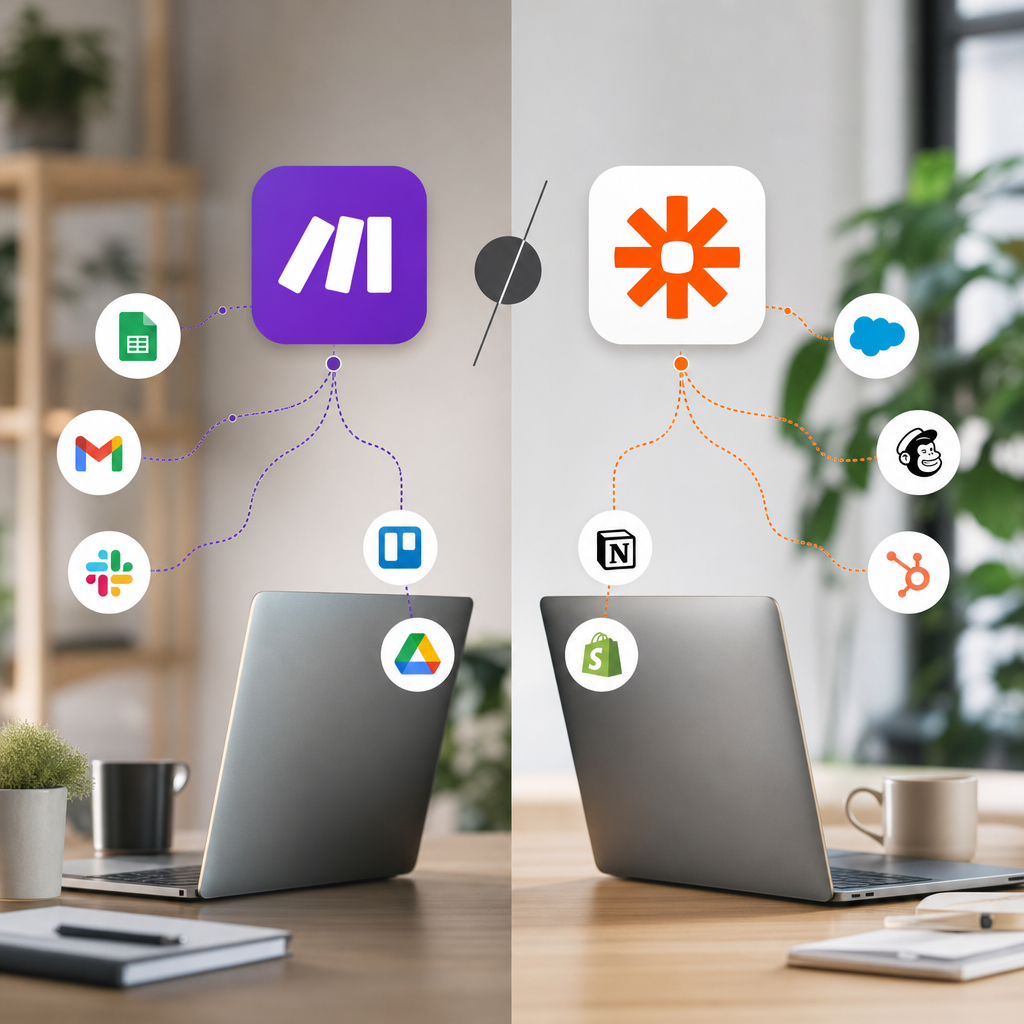
Make vs. Zapier for Small Business Automation: Which No-Code Platform Should You Choose?
The modern world of entrepreneurship moves quickly. Small-business owners and solopreneurs are expected to manage marketing, sales, customer service, content creation, bookkeeping, order fulfillment, and administrative work—often without a large team.
The challenge is not usually a shortage of ideas. It is a shortage of time.
Every hour spent copying contact information into a spreadsheet, sending routine follow-up emails, reformatting content, or updating records is an hour that cannot be spent improving products, serving customers, or growing revenue.
This is where no-code automation creates an important advantage.
No-code automation platforms connect the applications you already use and allow information to move between them automatically. Instead of repeatedly performing the same sequence of actions, you build the process once and allow the automation to run whenever the appropriate event occurs.
Two of the best-known platforms in this category are Make and Zapier. Both can connect applications, move data, trigger actions, incorporate artificial intelligence, and automate substantial portions of a small business. However, they approach automation differently.
Make provides a highly visual environment that offers detailed control over complex workflows. Zapier emphasizes accessibility, broad application support, and the ability to launch straightforward automations quickly.
Neither platform is automatically better for every business. The right choice depends on the processes you want to automate, the applications you use, the amount of control you need, and how comfortable you are learning a visual workflow builder.
What Is No-Code Automation?
No-code automation allows you to create digital workflows without programming the connections yourself.
Most automations contain two fundamental elements:
- Trigger: The event that starts the automation.
- Action: The task performed after the trigger occurs.
A simple automation might look like this:
When someone completes a website contact form, add that person to a Google Sheet.
The form submission is the trigger. Creating the spreadsheet row is the action.
A more advanced workflow could look like this:
When a customer submits a contact form, analyze the inquiry with AI, classify the lead, add the contact to a customer database, draft a personalized response, notify the business owner, and schedule a follow-up reminder.
The underlying process follows a clear sequence:
Trigger → collect data → process data → make a decision → perform actions → record the outcome
Both Make and Zapier allow business owners to construct this sequence through a visual interface.
How AI Changes Business Automation
Traditional automation works extremely well when the rules are predictable.
For example:
- If an order is marked “shipped,” send a shipping notification.
- If a payment is overdue, send a reminder.
- If a form is submitted, create a customer record.
- If an appointment is scheduled, add it to a calendar.
AI extends automation into tasks involving language, context, or limited judgment.
An AI step can:
- Summarize an email.
- Categorize a customer inquiry.
- Extract information from an unstructured message.
- Draft a personalized response.
- Turn notes into an article outline.
- Convert an article into social media drafts.
- Analyze customer feedback.
- Assign a lead-quality score.
- Identify the likely purpose or tone of a message.
The automation platform still handles the movement of information. The AI interprets or transforms that information before the workflow continues.
This combination is particularly powerful for solopreneurs because it automates parts of the business that previously required a person to read, understand, and prepare an initial response.
Make Automation: Visual Control Over Complex Processes
Make, formerly known as Integromat, uses a visual, canvas-based workflow builder.
Automations in Make are called scenarios. Each scenario contains modules representing the applications, data sources, tools, and actions involved in the process. You place modules on a canvas and connect them to show how information should move through the workflow.
A scenario might begin with a WordPress module that watches for newly published articles. The article could then pass through an AI module, a text-formatting module, a router, several social media modules, and a Google Sheets module that records the results.
Because the entire workflow is visible, Make is especially useful when a process includes:
- Multiple branches.
- Several applications.
- Conditional rules.
- Data transformation.
- Repeating actions.
- Filters and routers.
- Aggregating information from multiple records.
- Error-handling paths.
- Several possible outputs.
Make currently promotes a visual-first automation platform supporting more than 3,000 prebuilt applications, along with AI tools, AI agents, routers, filters, and code options for advanced users. Its free plan includes a visual builder and a monthly credit allowance, while paid plans increase capacity and unlock additional controls. Make platform overview and Make pricing.
What Make Does Well
Visual Workflow Mapping
Make allows you to see the entire process as a connected system. That makes it easier to understand how data travels from one application to another.
For people who think visually, the canvas can be more intuitive than reading a long list of steps.
Branching and Conditional Logic
Make’s routers allow one workflow to travel down different paths.
For example, a customer-service scenario could route:
- Shipping questions to an automated response.
- Product questions to the sales queue.
- Refund requests to a human reviewer.
- Urgent complaints directly to the owner.
Each branch can have its own filters, applications, and actions.
Data Manipulation
Make is particularly strong when data must be reformatted before another application can use it.
A scenario might:
- Separate first and last names.
- Reformat dates.
- Combine information from several fields.
- Remove unwanted text.
- Turn multiple records into a single report.
- Convert structured information into an AI prompt.
- Extract selected fields from an AI response.
This level of control is valuable for data-heavy workflows.
Detailed Execution Visibility
Make shows how individual pieces of data move through a scenario. If a workflow fails, you can inspect the modules and determine where the problem occurred.
That visibility becomes increasingly valuable as workflows grow more complex.
Potential Disadvantages of Make
Make’s flexibility introduces a steeper learning curve.
New users may need time to understand:
- Modules.
- Bundles.
- Mapping.
- Filters.
- Routers.
- Iterators.
- Aggregators.
- Webhooks.
- Error handlers.
- Data structures.
You do not need to become a programmer, but you may need to think more like a process designer.
Make can also encourage users to build unnecessarily elaborate systems. A workflow with too many routes, transformations, and application calls may become difficult to maintain.
The best practice is to start with a small scenario and add complexity only when the business process requires it.
Zapier Automation: A Fast Route From Trigger to Action
Zapier organizes its traditional automated workflows as Zaps.
A Zap begins with a trigger and continues through one or more actions. The builder guides users through the workflow step by step, making it approachable for people who are new to automation.
A simple Zap might follow this sequence:
- A customer submits a form.
- Zapier creates a row in Google Sheets.
- Zapier adds the customer to an email list.
- Zapier sends the owner a notification.
Zapier is frequently attractive to beginners because the setup process feels like completing a guided form. You choose an application, select an event, connect the account, match the required fields, test the step, and continue.
Zapier now supports multi-step workflows, logic branches, AI processing, tables, forms, chatbots, agents, and other automation components. The company reports integrations with more than 9,000 applications, giving it a particularly broad application ecosystem. Zapier platform overview and Zapier pricing.
What Zapier Does Well
Beginner-Friendly Setup
Zapier makes the trigger-and-action relationship easy to understand.
For a business owner building a first automation, the guided experience reduces some of the uncertainty involved in connecting applications.
Extensive Application Support
Zapier’s integration library is one of its strongest advantages. If you use several specialized business applications, there is a good chance that Zapier supports them directly.
This matters because a native integration is generally easier to configure than building a custom connection through an API or webhook.
Fast Deployment
Straightforward automations can often be assembled and tested quickly.
Examples include:
- Sending form submissions to a spreadsheet.
- Adding new buyers to an email list.
- Creating tasks from starred emails.
- Posting meeting notifications to a team channel.
- Saving attachments to cloud storage.
- Creating customer records after purchases.
For these kinds of processes, Zapier can be an efficient choice.
Broader Automation Product Suite
Zapier has expanded beyond basic Zaps. Its platform now includes AI-enabled workflows, Tables, Forms, Canvas, Chatbots, Agents, MCP connections, and developer tools.
This means a business may be able to collect information, store it, process it, and automate the next action within the same general ecosystem.
Potential Disadvantages of Zapier
Zapier’s task-based billing can become an important consideration as volume increases.
A Zap contains one trigger and one or more actions. The actions that successfully perform work generally contribute to task usage, although Zapier excludes certain built-in tools from task counts. A workflow that performs several actions for every incoming record can therefore consume multiple tasks each time it runs. Zapier pricing and task explanation.
Zapier can handle branching and advanced workflows, but some users may find Make’s canvas easier for understanding complicated data paths. A long Zap containing many steps may be simple to build one step at a time but harder to comprehend as a complete system.
Make vs. Zapier: Side-by-Side Comparison
| Feature | Make | Zapier |
|---|---|---|
| Workflow terminology | Scenario | Zap |
| Interface | Visual canvas with connected modules | Guided trigger-and-action builder |
| Learning curve | Moderate to steep | Generally gentler for beginners |
| Best starting use | Multi-step, branching, or data-heavy processes | Fast, straightforward app automations |
| Branching logic | Highly visual routers and filters | Paths, filters, and conditional logic |
| Data transformation | Granular controls and mapping | Built-in formatting and data tools |
| Application ecosystem | More than 3,000 prebuilt apps | More than 9,000 app integrations |
| Usage model | Credits consumed by module actions and certain advanced features | Primarily based on completed action tasks |
| Troubleshooting | Detailed visual execution inspection | Step-by-step task and run history |
| AI capabilities | AI apps, toolkit, agents, content extraction, model connections | AI workflows, Copilot, Agents, Chatbots, and AI app integrations |
| Best suited to | Users who want control and visual process design | Users who value accessibility and broad app support |
Platform features and prices change, so check each company’s current plan before committing to a long-term subscription.
Understanding the Cost Difference
Comparing Make and Zapier on price is not as simple as comparing two monthly subscription amounts. You must estimate how your specific workflow consumes usage.
How Make Measures Usage
Make now uses credits as its billing unit. Most module actions consume a credit, although some advanced capabilities—particularly certain AI or code features—may consume credits differently.
Suppose one scenario does the following:
- Receives a form submission.
- Searches for an existing contact.
- Creates or updates a spreadsheet row.
- Sends the text to an AI model.
- Creates a task.
- Sends an email.
That workflow uses several modules for each submission. If it processes hundreds of submissions, usage grows with the number of module actions performed.
How Zapier Measures Usage
Zapier mainly measures usage through completed action tasks.
For example:
- A form submission triggers the Zap.
- A spreadsheet row is created.
- A contact is added to an email platform.
- A personalized message is sent.
- A follow-up task is created.
The trigger itself is treated differently from the actions, while qualifying actions contribute to task usage. Some built-in functions may not count as tasks, so the precise total depends on the workflow.
Estimate Cost Before Building
Before choosing a plan, estimate:
Monthly workflow runs × billable steps per run = approximate monthly usage
If a workflow runs 500 times per month and performs five billable actions each time, it may create approximately 2,500 units of relevant activity, subject to each platform’s billing rules.
This estimate will not always be exact, especially when searches, loops, branching paths, AI features, or error retries are involved. However, it provides a much better foundation than choosing a platform solely by its advertised starting price.
AI Business Automation Templates
Templates provide prebuilt workflow structures that can be copied and customized.
A useful template does more than connect two applications. It provides a repeatable system for producing a business outcome.
Examples include:
Lead Capture Template
Trigger: A new website form is submitted.
Workflow:
- Validate the submitted information.
- Use AI to summarize the inquiry.
- Classify the lead by service or product interest.
- Assign a priority level.
- Add the lead to a spreadsheet or CRM.
- Draft a personalized reply.
- Send the draft for approval.
- Schedule a follow-up task.
Customer Follow-Up Template
Trigger: A purchase, appointment, or service is completed.
Workflow:
- Wait for an appropriate period.
- Check whether the customer has already responded.
- Draft a follow-up message.
- Request feedback or a review.
- Update the customer record.
- Alert the owner if the customer reports a problem.
Content Repurposing Template
Trigger: A new WordPress article is published.
Workflow:
- Retrieve the article.
- Extract its main argument and supporting points.
- Draft a newsletter version.
- Create platform-specific social posts.
- Prepare an Instagram carousel outline.
- Draft a short video script.
- Add the assets to a content calendar.
- Submit everything for human approval.
Invoice Reminder Template
Trigger: An invoice reaches its due date without being marked as paid.
Workflow:
- Confirm the payment status.
- Identify how many days the invoice is overdue.
- Select the appropriate reminder.
- Personalize the message.
- Send it or request approval.
- Record the contact attempt.
- Notify the owner if the invoice remains unpaid.
How to Automate a Solo Business Without Coding
A successful automation project begins with the process—not the platform.
Step 1: Track Repetitive Work
For one week, record tasks that you repeat.
Look for work involving:
- Copying and pasting.
- Moving information between applications.
- Sending similar messages.
- Creating the same type of document.
- Updating spreadsheets.
- Sorting incoming requests.
- Preparing recurring reports.
- Publishing or repurposing content.
Record how frequently each task occurs and how much time it consumes.
Step 2: Choose a Low-Risk, High-Frequency Task
Your first automation should be easy to test and unlikely to cause serious damage if it fails.
Good first projects include:
- Saving form submissions.
- Creating calendar reminders.
- Organizing content ideas.
- Drafting routine emails for approval.
- Sending internal notifications.
- Recording new orders.
- Updating a content calendar.
Avoid beginning with automatic refunds, financial transfers, legal messages, or angry customer complaints.
Step 3: Map the Workflow
Write the process in plain language before opening Make or Zapier.
For example:
When a new article is published, retrieve the article, summarize it, create three social drafts, save the drafts to Google Sheets, and email me a review notification.
Identify:
- The trigger.
- Required information.
- AI tasks.
- Business rules.
- Human approval points.
- Final actions.
- Records that should be stored.
Step 4: Choose Your Platform
Choose Zapier when:
- You want the gentlest possible starting experience.
- Your workflow is relatively straightforward.
- A required application is available in Zapier but not Make.
- You value speed of setup.
- You prefer guided steps.
- Your expected task volume fits the available plan.
Choose Make when:
- Your workflow contains several branches.
- You need extensive data transformation.
- You want to see the entire system on one canvas.
- You expect to build more sophisticated scenarios.
- You want granular filters, routes, and error handling.
- You are willing to spend more time learning the platform.
Step 5: Build the Smallest Version
Do not begin by automating every possible action.
If you are building a lead workflow, start with:
Form submission → spreadsheet row → owner notification
Once that works consistently, add:
- AI classification.
- Lead scoring.
- Personalized drafts.
- CRM updates.
- Follow-up scheduling.
- Reporting.
Building in stages makes problems easier to identify.
Step 6: Add an AI Step Carefully
Give the AI precise instructions.
A useful prompt could say:
Analyze the new client inquiry. Return the requested service, urgency level, a one-sentence summary, and a professional reply draft. Do not promise prices, deadlines, refunds, or availability. If essential information is missing, identify what the business owner needs to verify.
Ask for structured output whenever possible. Separate fields are easier for the automation platform to route than a long block of unpredictable text.
Step 7: Include Human Review
AI-generated work should be reviewed before it affects customers, finances, or public content—especially while the workflow is new.
A practical approval process might be:
- The AI creates a draft.
- The draft is saved with a “Needs Review” status.
- The owner receives a notification.
- The owner edits and changes the status to “Approved.”
- A second workflow sends or publishes the approved output.
This provides automation without giving up control.
Step 8: Test Normal and Unusual Inputs
Test more than the perfect example.
Try:
- Missing contact information.
- Duplicate submissions.
- Extremely long messages.
- Spelling mistakes.
- Messages unrelated to the business.
- Angry customer language.
- Empty AI responses.
- Disconnected applications.
- Invalid spreadsheet data.
You need to understand how the workflow behaves when something goes wrong.
Step 9: Monitor Performance
Track:
- How often the workflow runs.
- How much usage it consumes.
- How many runs fail.
- How much time it saves.
- How often AI output requires major corrections.
- Whether customers receive faster responses.
- Whether the process produces more leads, appointments, or sales.
An automation should justify its existence through measurable results.
A Practical Solopreneur Example
Consider a freelance consultant who receives inquiries through Gmail.
The consultant currently:
- Opens each email.
- Reads the request.
- Copies the contact information into a spreadsheet.
- Writes a response.
- Creates a follow-up reminder.
- Records the lead’s status.
A no-code AI workflow could perform most of the preparation automatically.
The Automated Version
Trigger: A new message matching specific inquiry criteria arrives in Gmail.
Actions:
- Retrieve the sender’s name, email address, subject, and message.
- Use AI to identify the requested service.
- Classify the lead as low, medium, or high priority.
- Extract relevant details.
- Add the information to Google Sheets or a CRM.
- Draft a reply using approved language.
- Create a follow-up task.
- Notify the consultant.
- Wait for approval before sending the response.
Either Make or Zapier could build this workflow.
Zapier may allow a beginner to assemble the initial version more quickly. Make may be preferable if the consultant wants multiple branches for different services, detailed data transformations, or a more visual representation of the entire lead-management system.
Common Automation Mistakes
Automating an Unclear Process
If you cannot explain the process step by step, you are not ready to automate it. Document and simplify it first.
Building Too Much at Once
Large workflows are harder to test and troubleshoot. Build one useful section at a time.
Assuming AI Is Always Correct
AI can misunderstand messages, omit details, or produce inaccurate information. Use rules, validation, and approval steps.
Ignoring Usage Costs
A workflow that appears inexpensive during testing may become costly at higher volume. Estimate activity before launch and monitor it afterward.
Failing to Create Error Alerts
A workflow can stop because an account connection expires, a required field changes, or an application returns unexpected data. Configure notifications so failures do not remain invisible.
Automating Sensitive Decisions
AI can prepare information, but people should control consequential decisions involving payments, disputes, legal matters, hiring, or distressed customers.
Failing to Document the System
Record:
- What starts the workflow.
- Which accounts are connected.
- What each step does.
- Where information is stored.
- Who owns the workflow.
- How to stop it.
- How errors are handled.
Documentation turns a personal experiment into a reliable business system.
Final Verdict: Make or Zapier?
Choose Zapier if your priority is getting a straightforward automation running quickly. Its guided builder and extensive integration library make it a strong starting point for beginners and businesses using several specialized applications.
Choose Make if your priority is visual control, flexible data handling, sophisticated routing, and the ability to see complex processes as interconnected systems. It is particularly well suited to content engines, data-processing workflows, and automations with multiple conditional paths.
A useful rule of thumb is:
- Zapier helps you launch faster.
- Make gives you more visual control as complexity grows.
That does not mean Zapier is limited to simple processes or that Make cannot create simple automations. Both platforms have expanded substantially and can handle many of the same business use cases. The real question is which building experience, integration ecosystem, and usage model best fit your business.
Conclusion
For a solopreneur, automation is not merely a convenience. It is a form of operational leverage.
Every dependable workflow reduces the number of routine decisions you must make and the number of repetitive actions you must complete. Over time, these small efficiencies compound.
You do not need to automate your entire business immediately. Begin with one recurring task that consumes time but does not require sensitive human judgment. Map the process, build the smallest working version, test it carefully, and measure the results.
Whether you choose Make or Zapier, the objective remains the same: create a reliable system that gives your time back.
The platform is only the tool. The real advantage comes from designing a better way for the work to get done.
Take the Next Step
Which repetitive task would make the greatest difference if it disappeared from your weekly schedule?
Identify that task and use it as the foundation for your first workflow.
Get the Guide: Download our step-by-step automation templates and learn how to build your first AI-powered workflow in under an hour—without writing code.
Every hour spent copying contact information into a spreadsheet, sending routine follow-up emails, reformatting content, or updating records is an hour lost. Consider exploring AI Workflows for Solopreneurs to streamline these tasks.
Leave a Reply